Display ScoreBot on a Big Screen
Mirror your scoreboard to a TV, monitor, or projector
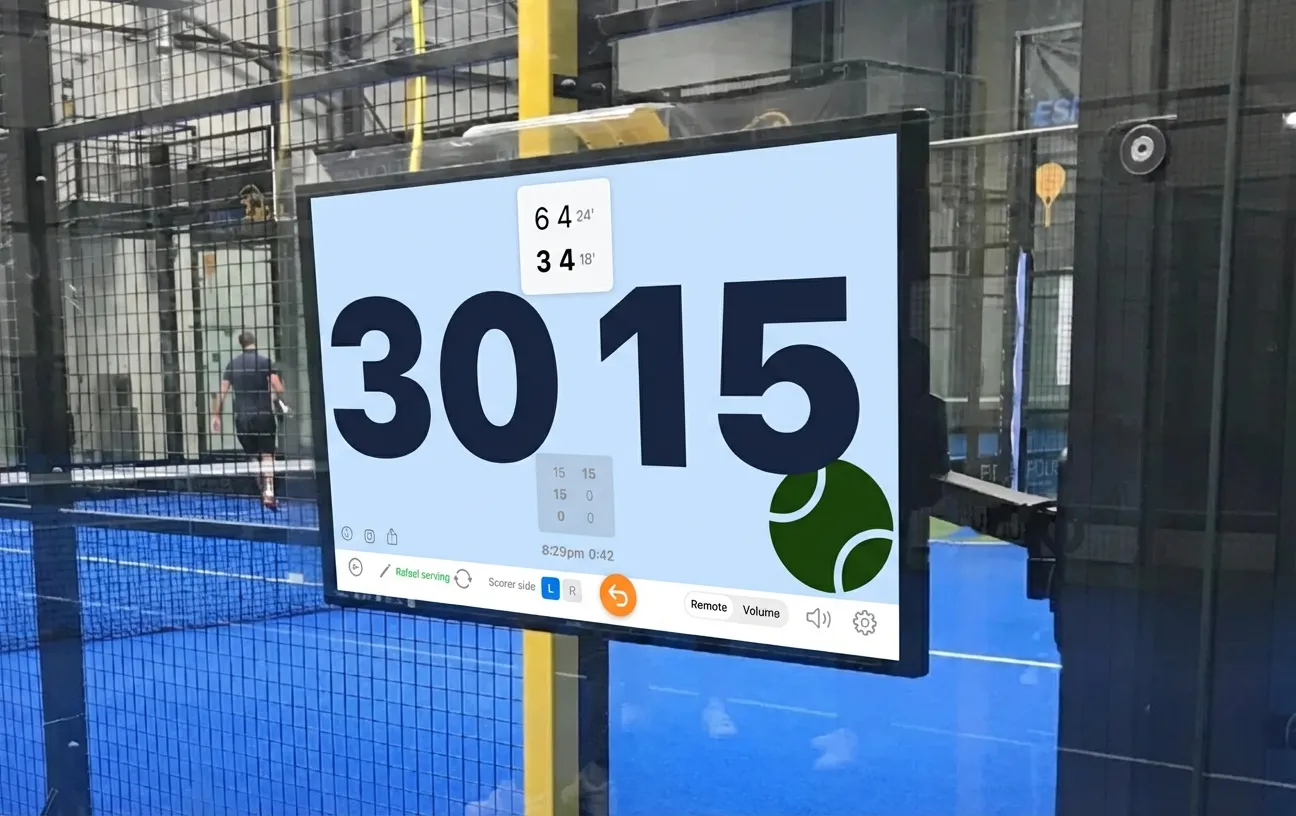
Why Use a Big Screen?
ScoreBot works great on your phone — but putting the scoreboard on a large screen takes it to the next level.
There are several ways to connect your iPhone or iPad to a TV, monitor, or projector. Here are the most common options — from simplest to most permanent.
Method 1: AirPlay (Wireless)
AirPlay is the easiest way to mirror your iPhone or iPad to a large screen wirelessly. Most modern smart TVs support it out of the box.
What you need
- An AirPlay-compatible smart TV, or an Apple TV box, or a Fire TV Stick
- iPhone or iPad running ScoreBot
- Both devices on the same Wi-Fi network
Steps
- Connect your iPhone/iPad and the TV to the same Wi-Fi network.
- Open ScoreBot and start a match.
- Open Control Centre (swipe down from the top-right corner).
- Tap "Screen Mirroring".
- Select your TV or Apple TV from the list.
- Your ScoreBot scoreboard now appears on the big screen.
Method 2: HDMI Cable (Wired)
A wired connection is the most reliable option — no Wi-Fi needed, no lag, and it works anywhere. Great for outdoor courts or venues with spotty networks.
What you need
- An HDMI cable
- A USB-C to HDMI adapter (iPhone 15+, most iPads) or Lightning Digital AV Adapter (iPhone 14 and earlier)
- A TV, monitor, or projector with an HDMI input
Steps
- Plug the adapter into your iPhone or iPad.
- Connect the HDMI cable from the adapter to the TV/monitor.
- Switch the TV to the correct HDMI input.
- Open ScoreBot — the scoreboard appears on the big screen instantly.
Method 3: Apple TV Box
An Apple TV is a small box that plugs into any TV or monitor via HDMI. It receives AirPlay wirelessly from your iPhone or iPad — no smart TV required.
What you need
- Apple TV (4K or HD)
- Any TV or monitor with an HDMI input
- Wi-Fi network
Steps
- Connect the Apple TV to your TV via HDMI and power it on.
- Connect the Apple TV to your venue's Wi-Fi.
- On your iPhone/iPad, open Control Centre and tap "Screen Mirroring".
- Select the Apple TV from the list.
- ScoreBot is now on the big screen.
Method 4: Chromecast / Fire TV Stick
Affordable streaming sticks that plug into any TV's HDMI port. The Fire TV Stick supports AirPlay natively, making it the easier choice for iPhone users.
What you need
- Fire TV Stick (recommended) or Chromecast
- Any TV or monitor with an HDMI input
- Wi-Fi network
Steps
- Plug the streaming stick into your TV's HDMI port and connect to Wi-Fi.
- For Fire TV Stick: use Screen Mirroring from your iPhone's Control Centre (AirPlay is built in).
- For Chromecast: install a third-party screen mirroring app on your iPhone (AirPlay isn't natively supported).
- Open ScoreBot and start your match.
Which Method Should You Choose?
Video Guides
Prefer to watch? These YouTube searches will show you step-by-step tutorials.